Filter
In this section, the picture can be scaled, moved and run through filters, for example to make it look like an old CRT monitor.
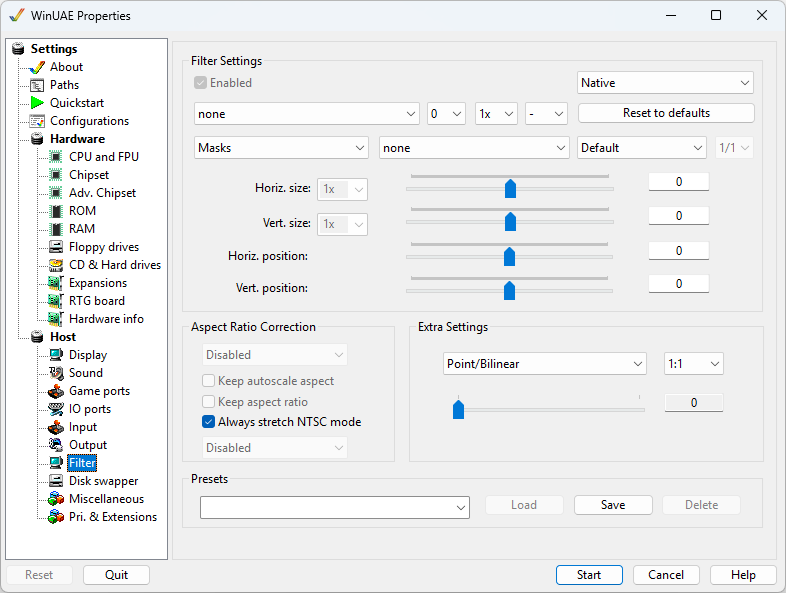
Filter Settings
Set to either Native, Native
(Interlaced) or RTG mode. Each has its own set of
filter settings.
The filter list offers None and the Direct3D shader
filters found in the filtershaders folder of WinUAE. The
built-in filters of older versions (Scale2X, hq2x,
SuperEagle and so on) no longer exist.
Scaling can be Point (sharp pixels) or
Bilinear (smooth).
The scaling mode decides how the picture is fitted to the
window or screen, for example Automatic scaling, Integer
scaling or Fullscreen (TV).
The Horizontal and Vertical Sizes and
Positions can be fine-tuned with the sliders.
Masks and overlays can be selected if any are installed.
Aspect Ratio Correction
You can specify the aspect ratio: Disabled, Automatic, or
a fixed one such as 4:3, 5:4, 16:9, 16:10 or 21:9.
Keep autoscale aspect ensures that any filter
will ensure display keeps its autoscale ratio correct to avoid
distortions.
Keep aspect ratio ensures that any filter will
ensure display keeps its aspect ratio correct to avoid
distortions.
Monitor type can be Disabled, VGA or TV.
Always stretch NTSC mode stretches NTSC screens to
the height of PAL screens.
Extra Settings
Point/Bilinear can be specified, and ratios
from 1:1 to 3:3 and from slider from 0 to 1.
Scanline can be specified as Scanline opacity,
level or offset and ratios from 1:1 to 3:3.
Scanline Brightness can be specified from 0 to
100.
Presets
Filter settings can be saved as a Preset if
you wish to reuse Filter settings in other configurations.
Previously saved settings can be Loaded or
Deleted, if not required.