Quickstart
Setting up WinUAE can be an extremely complex task,
especially for users who are not tech-savvy. That's where
Quickstart comes in: it will quickly get you going if all you
want is to emulate a certain model of Amiga.
It is entirely optional.
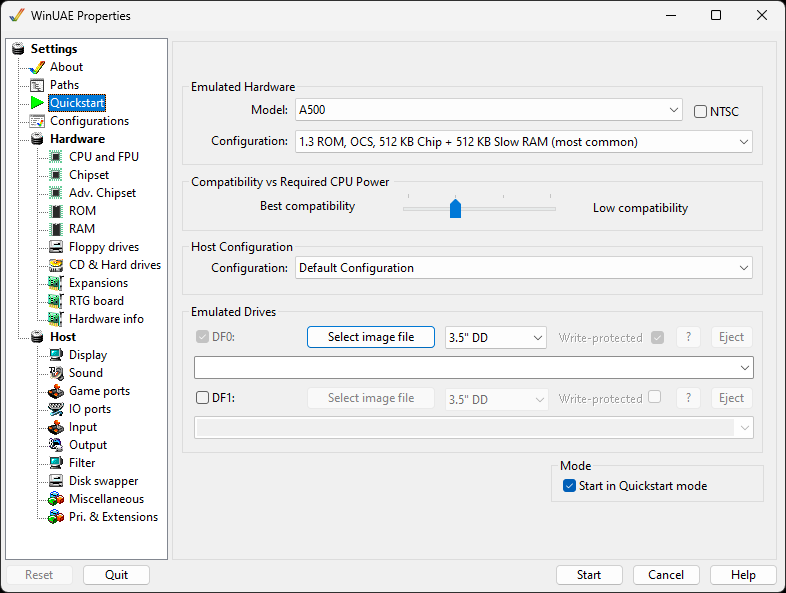
Emulated Hardware
Model - Select the model of Amiga you want
to emulate: A500, A500+, A600, A1000, A1200, A3000, A4000,
CD32, CDTV, American Laser Games / Picmatic, Arcadia,
Macrosystem or the Expanded WinUAE example configuration.
NTSC - Emulate an NTSC (60Hz) machine instead of a PAL
(50Hz) one.
Configuration - Select the common types of
Kickstart, chipset and memory configurations you require from
this list. This list changes depending on the model of Amiga
you selected.
Compatibility vs required CPU power
Best compatibility - Low compatibility - Select whether you want more Amiga chipset compatibility or faster CPU speeds from this slider.
Host Configuration
Configuration - Select which display, sound and input settings to use: the current ones, the defaults, or one of the saved host configurations (for example Windowed or Fullscreen).
Emulated Drives
These options are identical between Floppy drive DF0:
/ Floppy drive DF1::
Select image file - To load an ADF file to the
emulated drive.
3.5" DD / 3.5" HD - Allows selecting the
emulated floppy drive density.
? - Open the disk image information.
Write protect - Write protect the disk
image.
Eject - Eject the disk image.
For CD32 and CDTV, a CD drive or CD image is selected here instead.
Mode
Start in Quickstart mode - If enabled, then
the Quickstart mode is the default.
Set configuration - Applies the selected Quickstart
configuration.