Paths
Here are the default paths for where WinUAE will store configurations, save states, logs and screenshots, but also search for ROMs. By default, WinUAE stores this in the public documents folder.
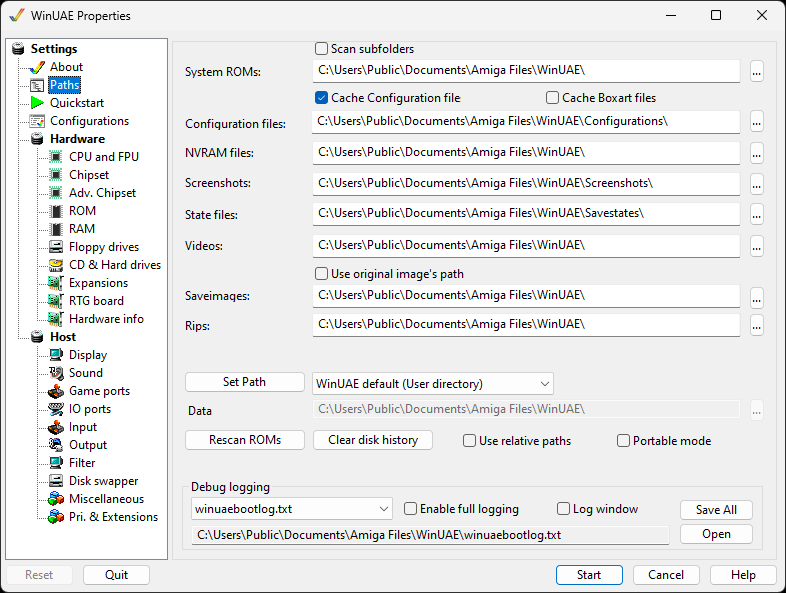
System ROMs Location of Kickstart ROMs needed to boot Amiga. Use
Scan subfolders to search subfolders for
ROMs.
Configuration files Location of .uae configuration files for different
models or configurations of Amigas.
Cache Configuration files Remembers the list of
configurations, so the GUI opens faster.
Cache Boxart files Does the same for the box art and
screenshot pictures shown for configurations.
NVRAM files Non-volatile memory files.
Screenshots Saves screenshots of the Amiga
screen, see the Output tab.
State files Saves memory to a state file. Useful for saving game
positions.
Videos Saves video
output to files here.
Use original image's path Use the original
paths for images rather than the Saveimage image path.
Saveimages Saves ADF floppy images here.
Rips Saves music and sound ripped files
here.
Set Path Resets changes to all paths back to
the AmigaForever, WinUAE defaults (User or EXE) or Custom
paths.
Data path Path for WinUAE data files.
Rescan ROMs Look for Kickstart ROMs on hard
disk.
Clear disk history Remove history of disks
used previously.
Use relative paths Allows use of relative
paths to WinUAE program location for running via USB e.g.
.\Configurations, .\Screenshots, those will be relative to the
path where WinUAE.exe is located
Portable mode will prevent settings from being
written to the system's registry
Debug logging
Debug logging Name of the WinUAE boot log
file.
Enable full logging Determines if a full
rather than a shorter log file is created.
Log window Display log in a window.
Log path and file name Full path to the log
name.
Save All Saves the log file.
Open Opens the current log file.
Logging can also be captured by redirecting standard output
on the command line, e.g.
winuae.exe >log.txt. The output is written in UTF-8 format.