Sound
Here you can select if (and how) UAE will provide sound emulation.
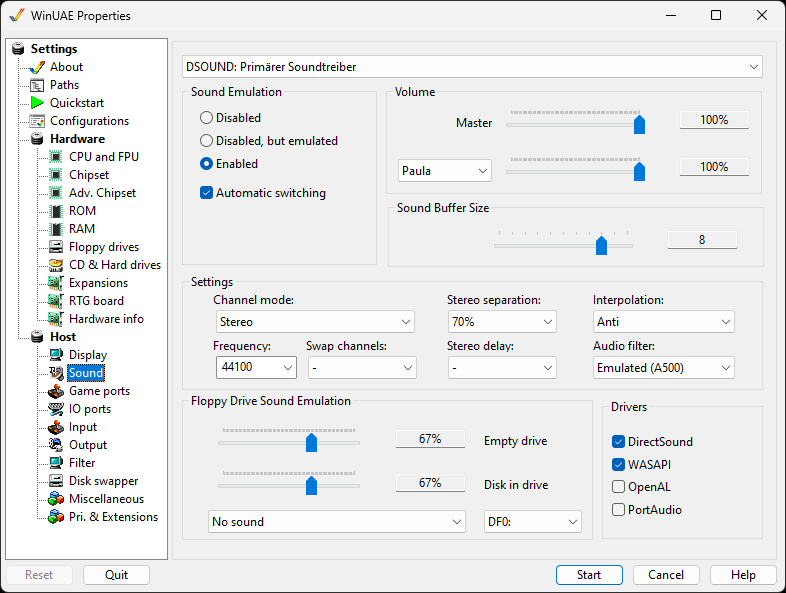
Sound device drop down menu to select which host sound card to use
Sound Emulation
- Disabled causes UAE not to emulate sound.
- Disabled, but emulated tries to emulate most of the sound hardware, but doesn't actually output sound.
- Enabled will emulate all of the sound hardware, and some programs won't work with other settings.
Automatic switching allows switching between sound modes automatically.
Volume
Master volume. Set overall volume between
0% (silent) to 100% (loud).
Paula,CD,AHI Audio, MIDI, Genlock. Set audio
from either Paula, direct CD, AHI sound between 0% (silent) to
100% (loud), MIDI or Genlock.
Sound Buffer Size
Sets the size of the sound buffer. If sound output is choppy, this should be changed.
Settings
Channel mode can be set to Mono, Stereo, 4
Channels, 5.1 or 7.1 Channels, or Cloned Stereo for 4, 5.1 or
7.1 speakers.
Stereo Separation can be set to improve stereo
sound.
Interpolation improves quality by smoothing
calculation results, but needs more computing power.
Frequency higher Frequency and/or Sample Type,
the higher the sound quality will be, but the slower the
emulation.
Swap channels can be used to swap between
channels for Paula, AHI or both types of Sound chipsets.
Stereo delay can be set to improve stereo
sound.
Audio Filter allows you to emulate Sound Power
LED and can be Always on, Always off or Emulated (for A500 or
A1200).
Floppy Drive Sound Emulation
This feature enables the Disk Drive sounds like on a real Amiga so you can hear disks being read or written to. Select a drive and the Amiga emulation mode to use (A500 by default). The sliders are the volume controls.
Drivers
You can enable which host sound drivers you can use to ensure sound works such as DirectSound, WASAPI (Windows Audio Session API), OpenAL, PortAudio.