Misc
Advanced settings which do not fit into other categories.
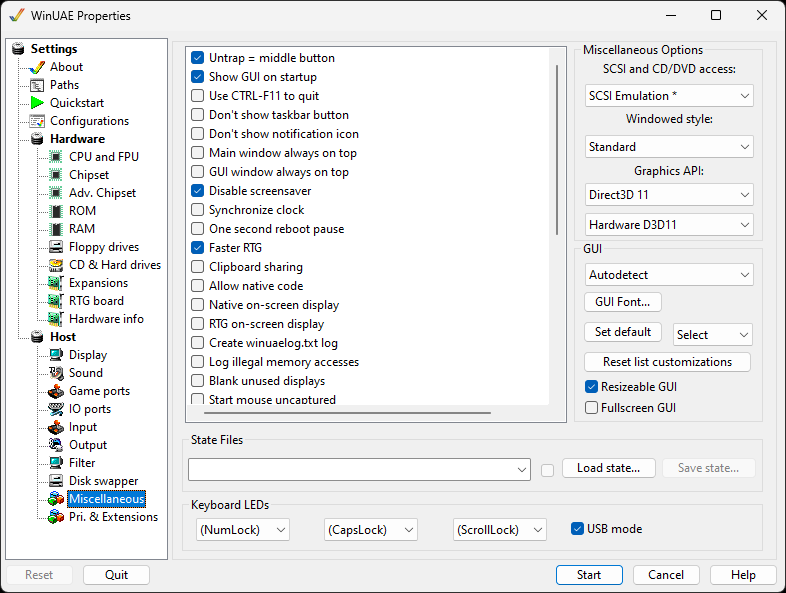
Advanced
Untrap = Middle Button
allows the middle button on your mouse to act like ALT-TAB,
switching focus away from the WinUAE emulation. This is useful
because WinUAE traps the mouse-cursor within its Window
borders, and if your hand is already on the mouse and you want
to escape this capture, you can just press the middle
button.
Show GUI on startup will allow you to
double-click a .uae configuration file without it
immediately launching the emulation.
Use CTRL-F11 to quit Just press this key
combination to quit WinUAE. If this option is enabled, the
ALT-F4 combination can be used by the Amiga properly, and
CTRL-F11 will quit WinUAE.
Don't show taskbar button Removes the taskbar
button.
Don't show notification icon Removes the
WinUAE icon from the notification area.
Main window always on top Make sure WinUAE
window is always on top of other windows.
GUI window always on top. Make sure the GUI
window is always on top of the windows.
Disable screensaver Temporarily stops screen
saver feature for the display when using WinUAE
Synchronize clock Synchronizes Amiga clock with the PC clock.
One second reboot pause introduces a short
pause before a reboot.
Faster RTG. Disables unneeded emulation
features such as internal bitplane emulation and copper, when
RTG (P96) is in use.
Clipboard sharing allows you to share the
contents of your clipboard between the Amiga and Windows if
enabled.
Allow Native code is disabled by default.
Context switching between native or emulated code (PPC/
68k)
Native on-screen display overrides Display
setting to use only native screen modes.
RTG on-screen display overrides Display
setting to use only RTG screen
modes.
Create winuaelog.txt log can be enabled to
debug WinUAE when experiencing problems (see Paths for more settings)
Log illegal memory accesses can be enabled to
debug memory access to protected or unallocated memory
areas.
Blank unused displays opens full screen
topmost black window(s) option.
Start mouse uncaptured. Start WinUAE but do
not capture mouse pointer in WinUAE window.
Start minimized. Minimize WinUAE window when
WinUAE is started.
Minimize when focus is lost will minimize the
WinUAE window if you switch to another program or window.
Black frame insertion is supported in variable
refresh modes.
Master floppy write protection overrides write
protection on the Floppy drives
window, so you can't accidentally untick it.
Master harddrive write protection overrides
write protection on the Hard drives window, so you can't
accidentally untick it.
Hide all UAE autoconfig boards will hide any
extra Zorro boards from the
emulator.
Right Control = Right Windows key. Map the
Windows key to a Right Ctrl key for some keyboards.
Windows shutdown / logoff notification.
Display WinUAE screen in Windows shutdown or logoff screen if
emulation session is active.
Warn when attempting to close window. Display
a warning if window close is attempted.
Power led dims when audio filter is disabled.
Dim the power light when audio filter is disabled (see Sound tab).
Automatically capture mouse when window is
activated. Saves having to capture mouse when swapping
windows to WinUAE.
Debug memory space Debug accesses to memory
space (memwatch).
Force hard reset if CPU halted. Ensures a full
hard reset when the CPU is halted.
A600/A1200/A4000 IDE scsi.device disable
Disable onboard IDE scsi.device.
Warp mode reset Auto switches off Warp mode
when running a program or KS ROM shows something.
GUI gamepad control Allow control of the GUI
via a gamepad
Default on screen keyboard (Pad button 4)
Allows disabling the default on screen keyboard mapping on the
pad
Default mapping in the GUI:
| Button | Explanation |
|---|---|
| A | select or left mouse click |
| B | right mouse click |
| Y | Change active GUI area or TAB key |
| D-Pad | select UI elements |
| Left stick | Move (requires a XInput compatible pad) |
Pad button 4 is default mapped to open/close on screen
keyboard input event.
Pad button/d-pad that normally controls Amiga Joystick moves
keyboard selection.
Miscellaneous Options
SCSI and CD/DVD access. Select type
of ASPI layer to use, e.g. SCSI
Emulation, SPTI, SPTI + SCSI Scan.
Windowed style. Select the following styles:
Borderless, Minimal, Standard or Extended
Graphics API selects how the picture is drawn:
Direct3D 11 (the default), Direct3D 9, Direct3D 11 HDR
(experimental) or GDI. Use GDI only if Direct3D does not work
on your PC.
Hardware D3D allows switching between hardware and
software Direct3D modes.
GUI
Specify the language used for WinUAE.
Autodetect will attempt to load the language
of the host system if it is available, or default to
English.
GUI Font. Select a font for GUI, select a font
using Windows font selection window.
OSD Font. Select the font for the on-screen messages
and the status bar.
Set default. Set the default font.
Select GUI size from 60% to 200%.
Reset list customizations sets all list
customizations back to defaults.
Resizeable GUI option to allow you expand or
shrink the WinUAE Window.
Fullscreen GUI option to expand the WinUAE
window to fill the screen.
Dark mode Follows the Windows setting by default, but
can also be switched on or off. Requires Windows 10 or
newer.
State Files
Load State. Loads a saved state from disk
into memory either as a USS, GZ or GZIP file.
Save State Saves state of system and memory to
disk, to a USS file.
Keyboard LEDs
(NumLock) Sets which LED to emulate e.g. Power, HD, CD,
DFx
(CapsLock) Set which LED to emulate e.g. Power, HD, CD, DFx
(ScrollLock) Set which LED to emulate e.g. Power, HD, CD,
DFx
USB-Mode Add support for Multimedia
keyboards.